
Coheremote
GitHubA wrapper app generator that integrates Windows apps on VMware Fusion into macOS Dock as native apps.
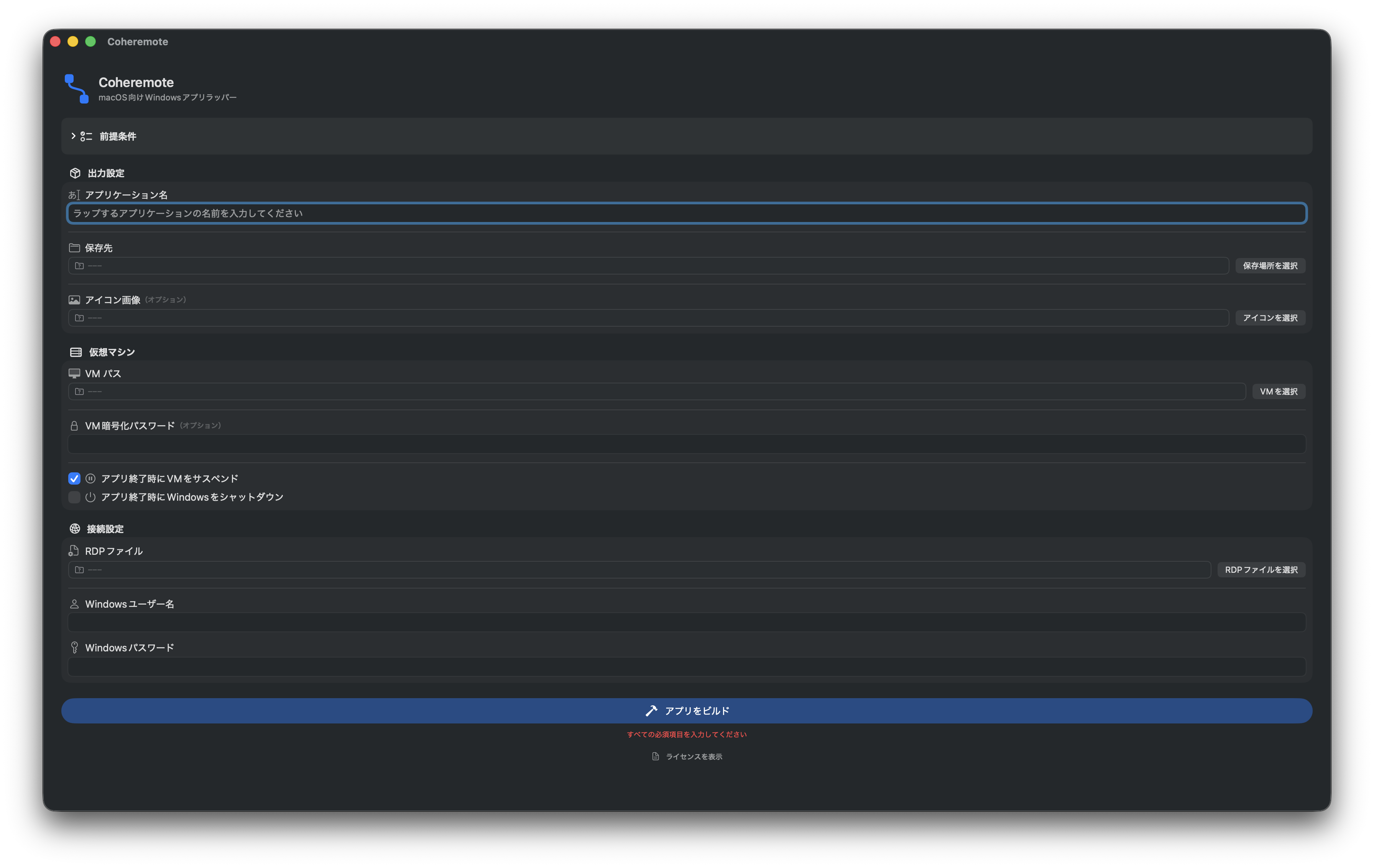
About the App
Coheremote is a wrapper app generator tool that integrates Windows applications running on VMware Fusion into the macOS Dock as native apps. It uses RemoteApp (RDP) technology to provide a seamless operating experience. The generated wrapper apps are native binaries compiled in Swift.
Inspired by this post on X.
Key Features
- Native Compilation: Generated wrapper apps are native binaries compiled in Swift.
- Status Window: Real-time display of VM startup, connection, and suspend status.
- Dock Menu: Right-click to reconnect, restart Windows, or shutdown and quit.
- Persistent Wrapper: Stays in the Dock after launching Windows App, managing the VM lifecycle.
- Quit Behavior Options: Choose between suspend / Windows shutdown / do nothing on quit.
- Smart Launch: Instantly detects VM state and connects immediately if already running.
- Encrypted VM Support: Securely stores encryption passwords in the macOS Keychain.
- App Launcher: Displays a launcher panel in the menu bar to launch installed Windows apps, control power, and switch between wrapper apps.
- App Show/Hide: Hide unwanted apps from the launcher's app list (settings are persisted).
- Custom Icons: Supports PNG, JPG, ICO, and ICNS formats.
- Bilingual: Both the app and generated wrappers auto-switch between Japanese and English based on system language.
- Persistent Settings: Settings are automatically saved and restored when regenerating.
Requirements
| Requirement | Notes |
|---|---|
| macOS 13.0 or later | Ventura or later |
| VMware Fusion | Installed in /Applications |
| Windows App | Install from the Mac App Store (formerly Microsoft Remote Desktop) |
| RDP File | Create using RemoteApp Tool or export from Windows App (see below) |
| Xcode Command Line Tools | swiftc is required to compile generated apps |
| Full Disk Access | Required for both Coheremote and all generated wrapper apps |
Installation
- Download the latest
.zipfrom Releases - Extract and move to
/Applications - On first launch, if macOS says the app is "damaged", run this in Terminal:
xattr -cr /Applications/Coheremote.app - Grant Full Disk Access (System Settings > Privacy & Security > Full Disk Access)
- Launch Coheremote
Usage
Generating a Wrapper App
- Launch Coheremote
-
Enter settings
Field Description Application Name Name of the wrapper app to generate Save Location Where to save the generated .appIcon Image PNG, JPG, ICO, or ICNS file (optional) VM Path .vmxfile or.vmwarevmbundleVM Encryption Password For encrypted VMs (optional) RDP File RemoteApp .rdpfile (see how to create)Windows Username For login Windows Password Used for fetching app list in the launcher (optional, requires VMware Tools) -
Option settings
- RemoteApp Conversion (default: OFF): Auto-inject RemoteApp settings into the RDP file. Convert a regular RDP connection to a per-app RemoteApp connection without using RemoteApp Tool
- Suspend VM on quit (default: ON)
- Shutdown Windows on quit (default: OFF)
- Add app launcher to menu bar (default: ON)
- Add Coheremote badge to icon (default: OFF)
- Click Build Application
- Grant Full Disk Access to the generated app
Dock Menu (Right-click)
| Menu | Description |
|---|---|
| Reconnect | Re-establish RDP connection (use when the Windows app was closed) |
| Restart Windows | Send a soft restart to the VM and auto-reconnect RDP after boot |
| Shutdown and Quit | Shutdown Windows and then quit the wrapper app |
App Launcher
Click the menu bar icon to display the launcher panel.
- Header: App name and connection status (green: connected / gray: disconnected)
- App List: List of applications installed on the Windows side (click to launch)
- Footer Buttons:
- Reconnect: Re-establish RDP connection
- Power: Restart, suspend, shutdown, or quit app only
- Show/Hide: Edit app list visibility (eye icon)
- Refresh: Re-fetch the app list
- Quit: Quit the app
Note: To use the app list in the launcher, you must enter the Windows Password in Coheremote settings and have VMware Tools installed on the Windows side.
Creating an RDP File
Method 1: RemoteApp Tool (Recommended)
Publish individual Windows applications as RemoteApps.
- Download and run RemoteApp Tool on the Windows side
- Click + to add an application (e.g.,
notepad.exe) - Select the application and click Create Client Connection
- Save the
.rdpfile - Copy the
.rdpfile to your Mac and use it with Coheremote
Method 2: Export from Windows App
Export an existing connection from Windows App (formerly Microsoft Remote Desktop) on macOS.
- Launch Windows App
- Add the PC if not already added: + > Add PC, enter the PC name (VM IP address or hostname), and save
- Right-click the added PC > Export to RDP file
- Save the
.rdpfile and use it with Coheremote
Note: Exporting from Windows App creates a full desktop connection. To make it a RemoteApp connection for an individual app, use Method 3 (Coheremote's conversion feature) or open the .rdp file in a text editor and add the following lines:
remoteapplicationmode:i:1
remoteapplicationname:s:AppName
remoteapplicationprogram:s:AppPath
Example (Notepad):
remoteapplicationmode:i:1
remoteapplicationname:s:Notepad
remoteapplicationprogram:s:C:\Windows\System32\notepad.exe
Method 3: Coheremote's RemoteApp Conversion
Convert RDP files directly from Coheremote's settings screen, eliminating the need for manual RDP file editing.
- Create an
.rdpfile using Method 2 - Enable RemoteApp Conversion in Coheremote's settings
- Enter the App Name (display name) and Program Path (Windows executable path)
- RemoteApp settings will be automatically injected into the RDP file at build time
Security Notes
- Password Storage: VM encryption passwords and Windows passwords are stored in the macOS Keychain (not in UserDefaults)
- vmrun Limitation: VMware Fusion's
vmruncommand only accepts passwords via process arguments (-vp,-gp). This means other processes from the same user can view the password via thepscommand. This is a known limitation of vmrun — exercise caution in shared environments - App Name Sanitization: Dangerous filesystem characters (
/,\,:,*,?,",<,>,|) are automatically removed from app names at build time
Troubleshooting
| Problem | Solution |
|---|---|
| "Operation not permitted" error | Full Disk Access is not granted. Add the app in System Settings > Privacy & Security > Full Disk Access. |
| VM does not start | Check that VMware Fusion is installed in /Applications and the VM path is correct. Logs: ~/Library/Logs/Coheremote/ |
| RemoteApp does not appear | Select "Restart Windows" from the Dock menu. If unresolved, recreate the .rdp file with RemoteApp Tool. |
| Windows app was closed | Select "Reconnect" from the Dock menu to re-establish the RDP connection. |
| Multiple wrapper apps at the same time | If windows for the 2nd+ apps don't appear, select "Reconnect" from the Dock menu. When multiple wrapper apps share the same VM, suspend/shutdown won't occur until the last app quits. |
| RDP connection fails | Check that Windows App (formerly Microsoft Remote Desktop) is installed. Test by manually opening the RDP file. |
| Auto login doesn't work | On first connection, Windows App may ask to save the password to the Keychain. Click "Allow" and auto login will work from the next connection. |